
Free Premiere Pro Alternatives for Beginners
Stop paying for Adobe Premiere Pro. We'll show you the best free video editors, like DaVinci Resolve and CapCut, that deliver professional power without the cost.
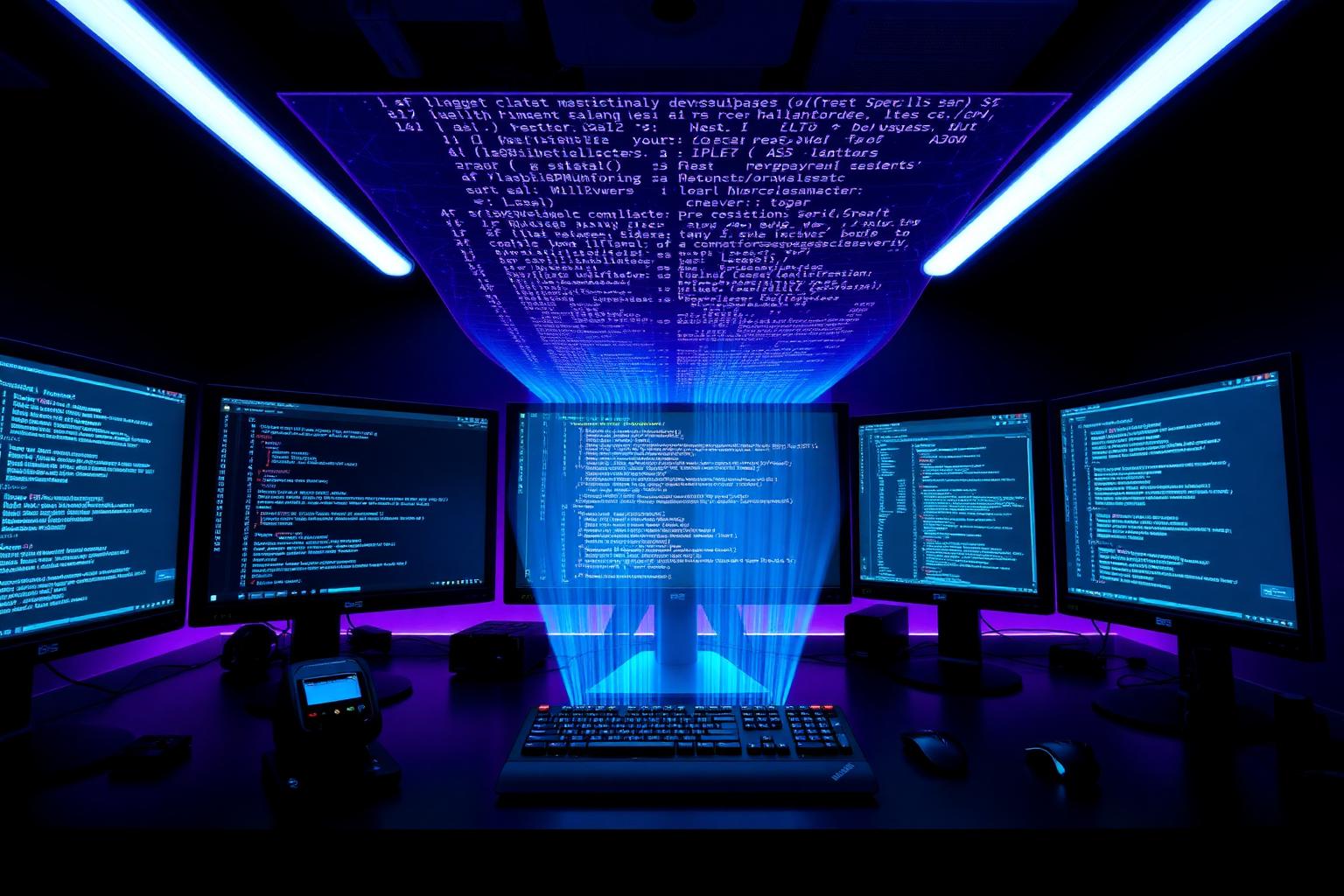
The best free alternatives to Adobe Premiere Pro for beginner editors are DaVinci Resolve for professional power and CapCut for social media speed.
If you want to learn the craft of editing with tools used in Hollywood, download the free version of Resolve. If you need to create content for YouTube or TikTok fast, get CapCut Desktop.
That's the direct answer. You don't need to spend a dime to start editing high-quality video today. The professional subscription model of tools like Premiere Pro isn't necessary when you're just starting out [3, 4].
Key Takeaways
- Top Pro-Level Pick: DaVinci Resolve (free version) is a full-featured professional suite with strong color and audio tools.
- Top Speed/Simplicity Pick: CapCut Desktop is user-friendly and tuned for short-form social workflows.
- Main Trade-off: Resolve demands more learning and better hardware; CapCut favors speed over fine control.
- Practical Approach: Start with the tool that matches your goals — use both if you need speed and a final polish.
The Best Free Alternatives to Adobe Premiere Pro for Beginner Editors
Related: Windows 12 Officially Launches: AI-First, Cloud-Native, and Finally Fast →
When you're new to video editing, the Adobe Creative Cloud subscription feels like a big barrier. It's costly and Premiere Pro can be overwhelming [2].
The free software landscape has improved a lot. You can get professional-grade tools without paying.
We're focusing on two main recommendations because they represent the two best paths for a beginner: the professional path and the social media path.
Pro Path: DaVinci Resolve (Free Version)
DaVinci Resolve by Blackmagic Design is the top free editing suite. The free version is not a stripped-down app. It's the same application used to color grade major films.
You get editing, color grading, motion graphics, and professional audio mixing in one package [5].
Who It's For
- Aspiring filmmakers, colorists, and professional editors.
- Anyone who wants to learn the detailed craft of post-production.
- Creators with a reasonably modern computer (a dedicated graphics card is highly recommended).
Getting Started with Resolve
- Download the free version of DaVinci Resolve from the Blackmagic Design website. Do not download the 'Studio' version, which is paid.
- When you open a project, you will see several 'Pages' at the bottom: Media, Cut, Edit, Fusion, Color, Fairlight, and Deliver.
- As a beginner, focus on the Cut Page for quick assembly and the Edit Page for detailed timeline work. You'll spend the majority of your time there.
- The Color Page is Resolve's strength. After your edit is locked, start with basic color correction there.
[INTERNAL_LINK: how to color grade video]
Common Pitfalls for Beginners
- Hardware: Resolve needs a capable computer. If your laptop has no dedicated GPU, it will be slow. It can be demanding with Fusion effects and 4K footage.
- Codecs: Resolve can be picky about file types. Phone video may use Variable Frame Rate (VFR), which causes issues. You may need to convert footage with a tool like HandBrake before importing.
Social Media Path: CapCut Desktop
If Resolve is a sophisticated workshop, CapCut is an automated production line. It's built to get content for YouTube, TikTok, and Instagram Reels out the door fast.
Who It's For
- YouTubers, TikTokers, and social media managers.
- Beginners who want results now without a steep learning curve [3].
- Anyone who needs fast, accurate auto-captions.
Why It's a Great Premiere Pro Alternative for a Beginner
CapCut's main advantage is a low-friction workflow. The interface is simple and intuitive.
Features that are complex or need plugins in Premiere Pro are often one-click in CapCut.
- Auto-Captions: Automatic transcription and captioning are free and save hours.
- Templates & Effects: A large library of trending sounds, effects, and text animations is available to drag and drop.
- Performance: It's lightweight and runs well on modest hardware, like a base model MacBook [6].
[INTERNAL_LINK: best laptops for video editing]
Trade-offs to Consider
- Limited Control: You won't get the same fine-grained control over color, audio, or effects as in Resolve.
- Data & Privacy: CapCut is owned by ByteDance, the same parent company as TikTok. Processing is local in the desktop app, but it's a factor some users consider.
Which Free Editor Should You Choose?
Related: GPT-5 Is Here: Everything You Need to Know About OpenAI's Most Powerful Model Yet →
Your choice shapes the skills you learn.
- Choose DaVinci Resolve if: You want to learn editing as a transferable, professional skill and can invest time and hardware.
- Choose CapCut if: You need to produce social content quickly and prefer a simple, fast workflow.
Both tools work together. Many creators build a rough cut in CapCut, then export to Resolve for final polish and color grade.
Your workflow should serve your goals, not the other way around.
Related Stories
View all in Software →






The Daily Pulse
Get the 5 biggest tech stories in your inbox every morning. Free, no spam, unsubscribe anytime.
Join 50,000+ tech professionals reading every day.